
Mapping product custom fields from Upsales to Oneflow
When you create a Oneflow document from Upsales with a template containing data fields or a product table, information from your opportunity, company, and contact records is automatically transferred to populate the document. This includes standard fields in Upsales as well as custom fields for products.
|
INFORMATION
|
|
Use case: Custom fields for products Your sales team can now:
|
Product custom fields
You can now include detailed, product-specific information in your Oneflow document by mapping custom fields from your Upsales products directly to Oneflow.
You can map up to 5 custom fields per product for up to 5 products per document (a total of 25 custom product fields).
Assume you have the following custom product fields in Upsales:
|
INFORMATION See the Upsales documentation to learn how to add a new custom field. |
To access Oneflow settings:
-
Click on your profile icon (on the top right), then select App directory.
-
In the Search apps field, enter "Oneflow" and select it from the search results.
-
Mapping: In Oneflow integration settings within Upsales, you can select which product custom fields you wish to transfer to your Oneflow document.
-
Syncing to Oneflow document data fields: Select which custom fields you wish to transfer to your Oneflow document. This action makes them available as individual data fields (e.g., 'Product 1 - SKU code') that can be placed anywhere in the Oneflow template. These fields will automatically be populated in the Oneflow document upon E-sign creation.
-
Product description: In a separate setting, you can then choose which of those mapped fields should be automatically appended to the description column in the product table for the corresponding product. Note that the Oneflow template you use to create the E-sign must contain a product table for this to work.
-
-
Placement of custom product fields in the Oneflow document
The default behavior is to append the selected Upsales fields to the description column of the Oneflow product table. However, you can also add them anywhere in the document’s body by adding data fields to your Oneflow template.
1. Product description column (automatic)
Fields mapped in the Product description section of Oneflow settings in Upsales are automatically appended to the product's Description column in the Oneflow product table.
Checkbox values in Upsales synced to product description in Oneflow:
When an Upsales custom checkbox field for a product is mapped, its value appears differently in the Oneflow product description depending on its state:
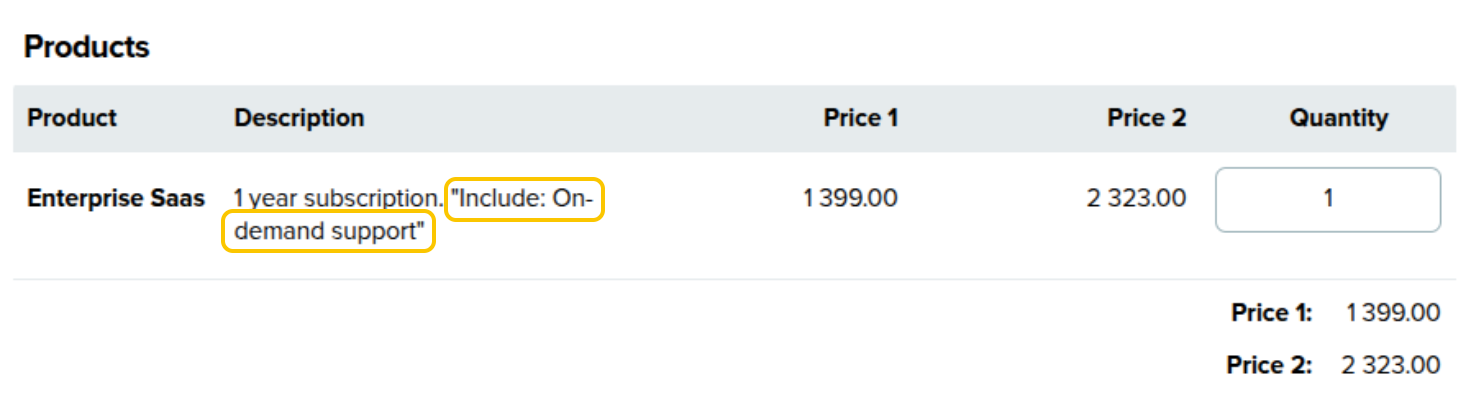
- If checked: Only the name of the checkbox field is appended to the product description. For example, if you have a custom checkbox field named "Include: On-demand support" and it is checked in Upsales, then the "Include: On-demand support" label will appear in the description column of Oneflow’s product table. The explicit value (`true`) is not displayed.
- If unchecked: Nothing is added to the product description for that field (In this case, “1 year subscription”).
This behavior is unique to checkbox fields. All other custom field types will typically show both the field name and its corresponding value (e.g., `Start Date: 2025-11-01`).
2. A data field in the Oneflow document's body (optional)
This option allows you to display the information outside of the product table. When you map a custom field (like "Detailed Description") in Oneflow settings, the integration automatically makes new data fields available in your Oneflow template.
You can then add these specific data fields (e.g., Product 1 Detailed Description) anywhere in your Oneflow template. When you create a document from Upsales, the field will be populated with the "Document Description" value for the first product listed in the opportunity.
|
NOTE These data fields follow a predictable, numbered naming convention. While you don't select this in the mapping screen, you use this known name in your Oneflow template.
...and so on, up to |
Example:
- In Upsales, you have a custom field named "License Term".
- You map this field in the integration settings.
- This automatically creates data fields available in Oneflow named `Product 1 License Term`, `Product 2 License Term`, and so on.
- In your Oneflow template, you can then add the data field called "Product 1 License Term" to a paragraph, and it will be populated with the value for the first product when creating a Oneflow E-sign from Upsales.